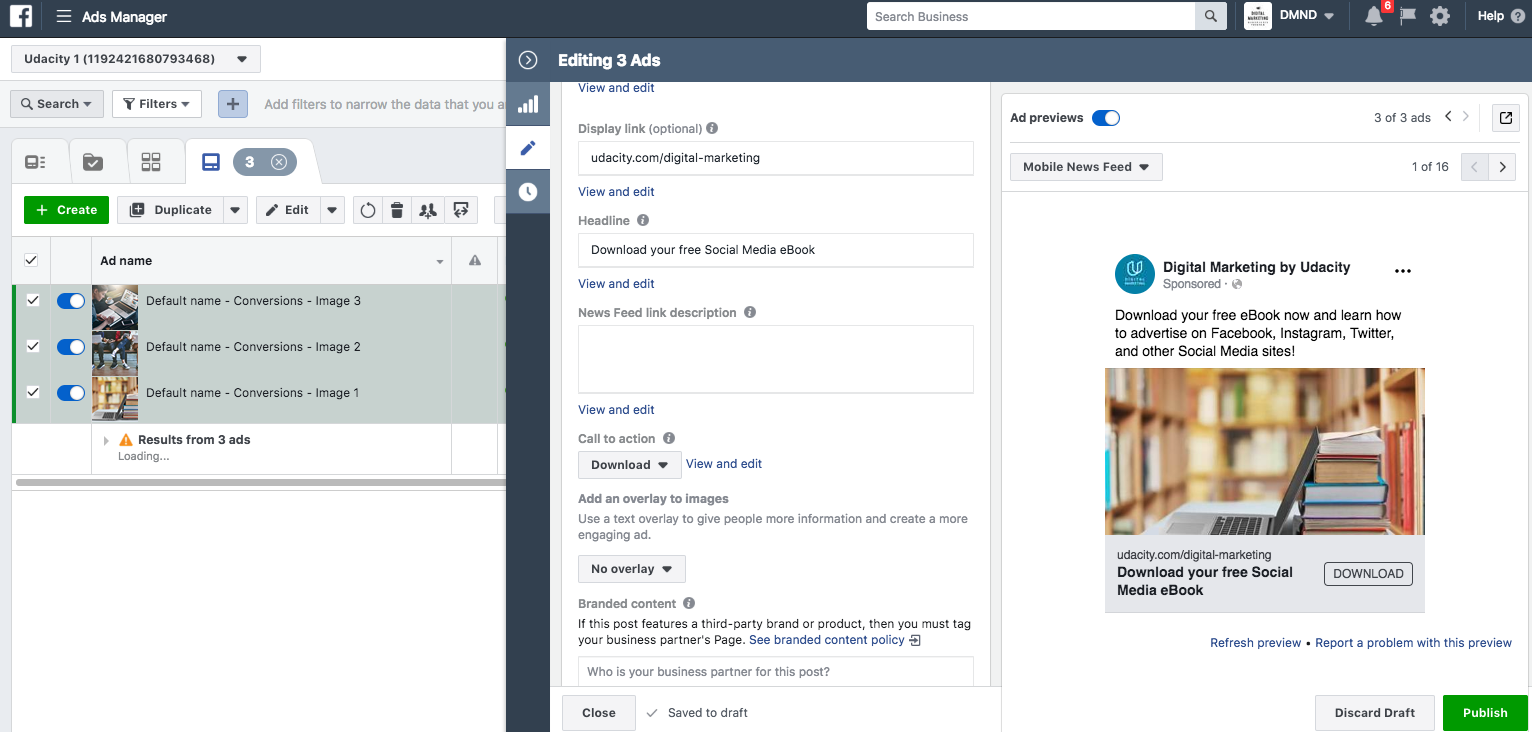
06. Submit for Review
Submitting Your Project
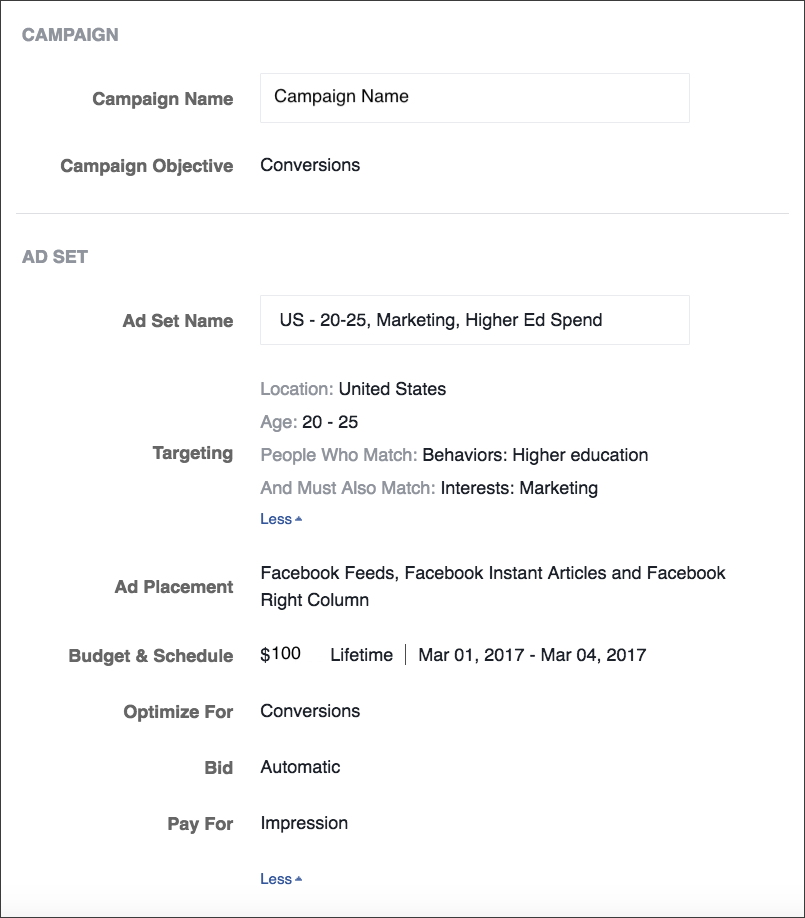
To ensure reviewers are able to you evaluate your campaign you’ll want to separate the Order Review into two screenshots (or more if necessary). An example of this is below:
Screenshot 1
Screenshot 2
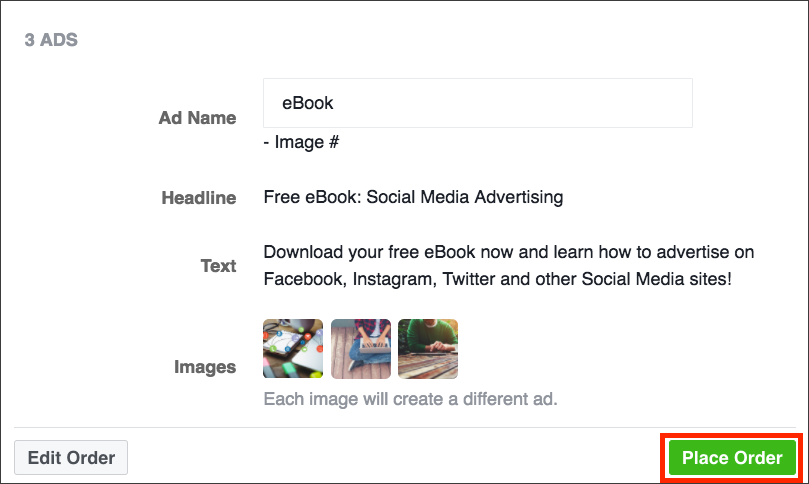
*Note the above screenshots are examples.
Alternate Screenshots
If you accidentally click the confirm button before you review your campaign and take the necessary screenshots for your project submission, you can still take screenshots of the details of your campaign to submit.
Take a look at the following directions to take screenshots of your campaign's details:
- Search for your Campaign Name
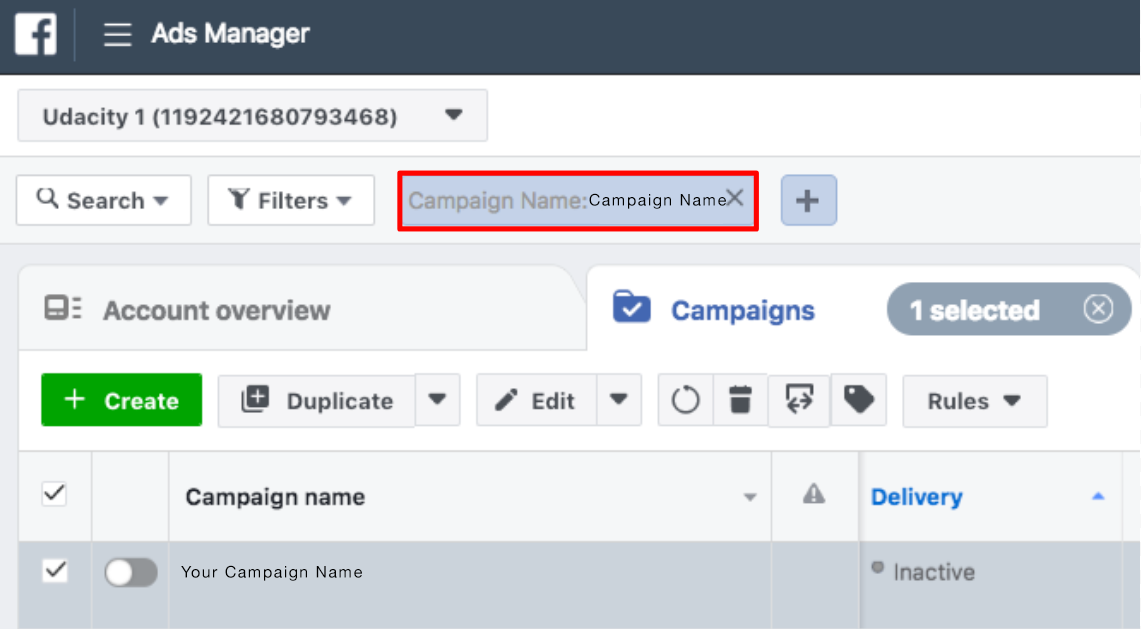
Select the Ads sets tab and click the pencil tool on the right-hand side.
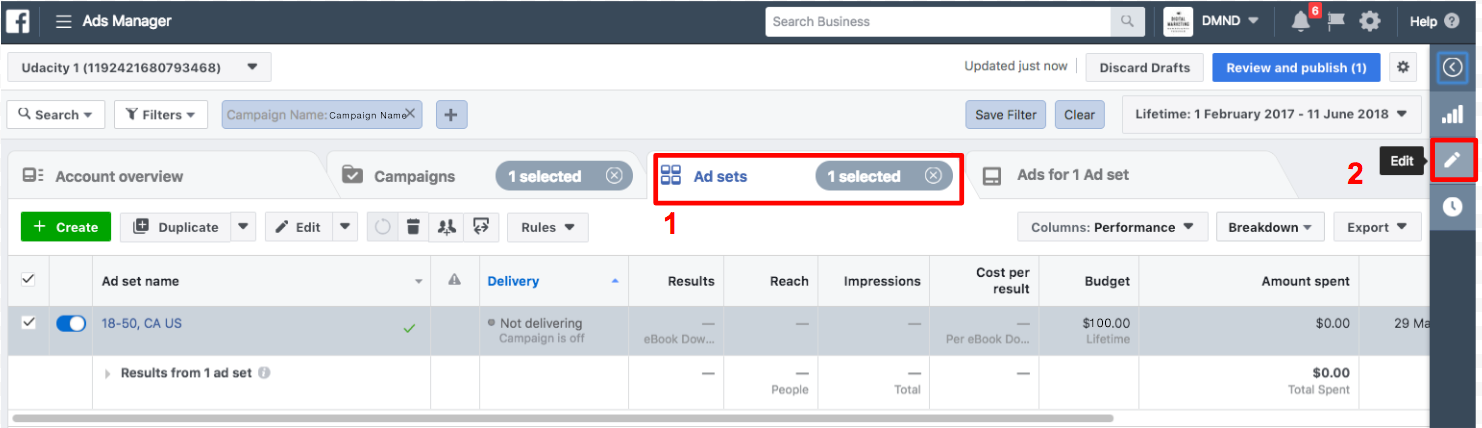
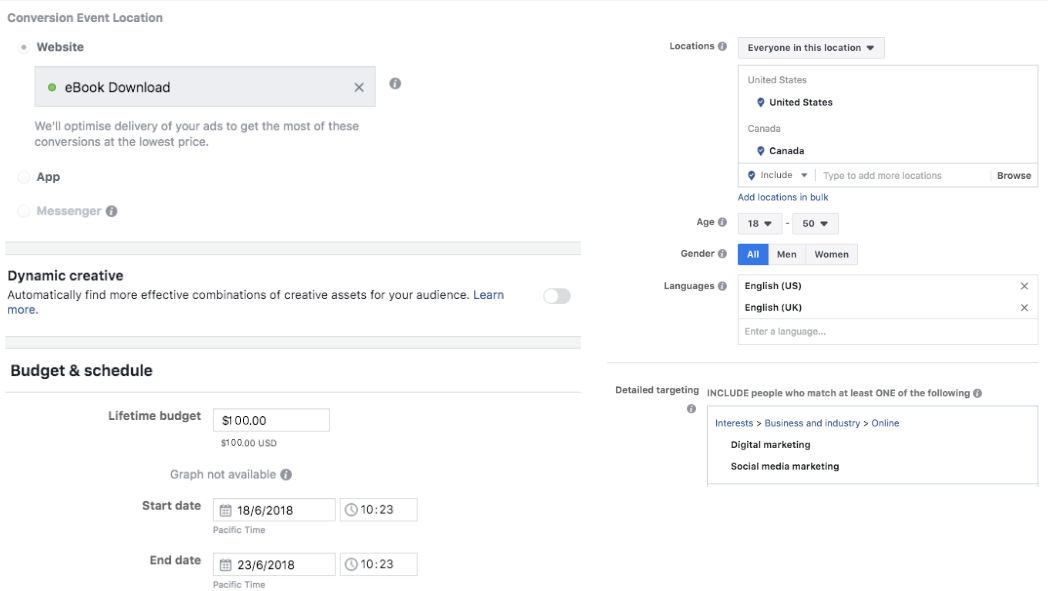
Take a screenshot of your conversion event location, budget, schedule, as well as your audience. You can use this for your project submission.
Next, select the Ads tab and click the pencil tool on the right-hand side.
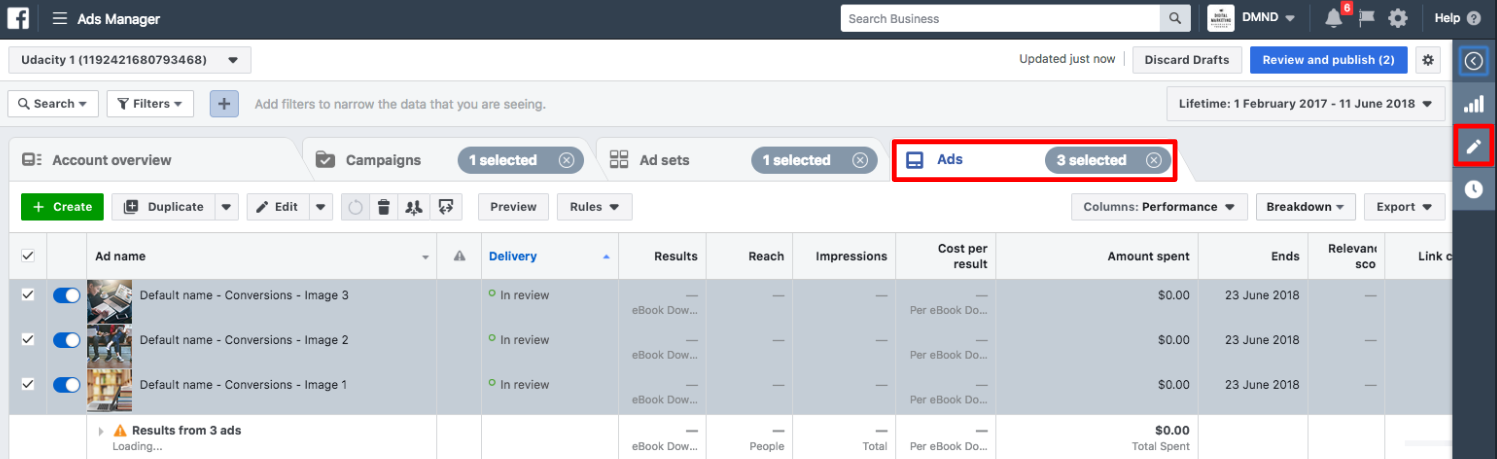
Take a screenshot of your ad's headline and copy. You can use this for your project submission as well.